Seedream 4.5 vs 5.0 Pro
Compare documented Seedream 4.5 and 5.0 Pro editing controls for fashion references, local changes and product review, without invented benchmark scores.
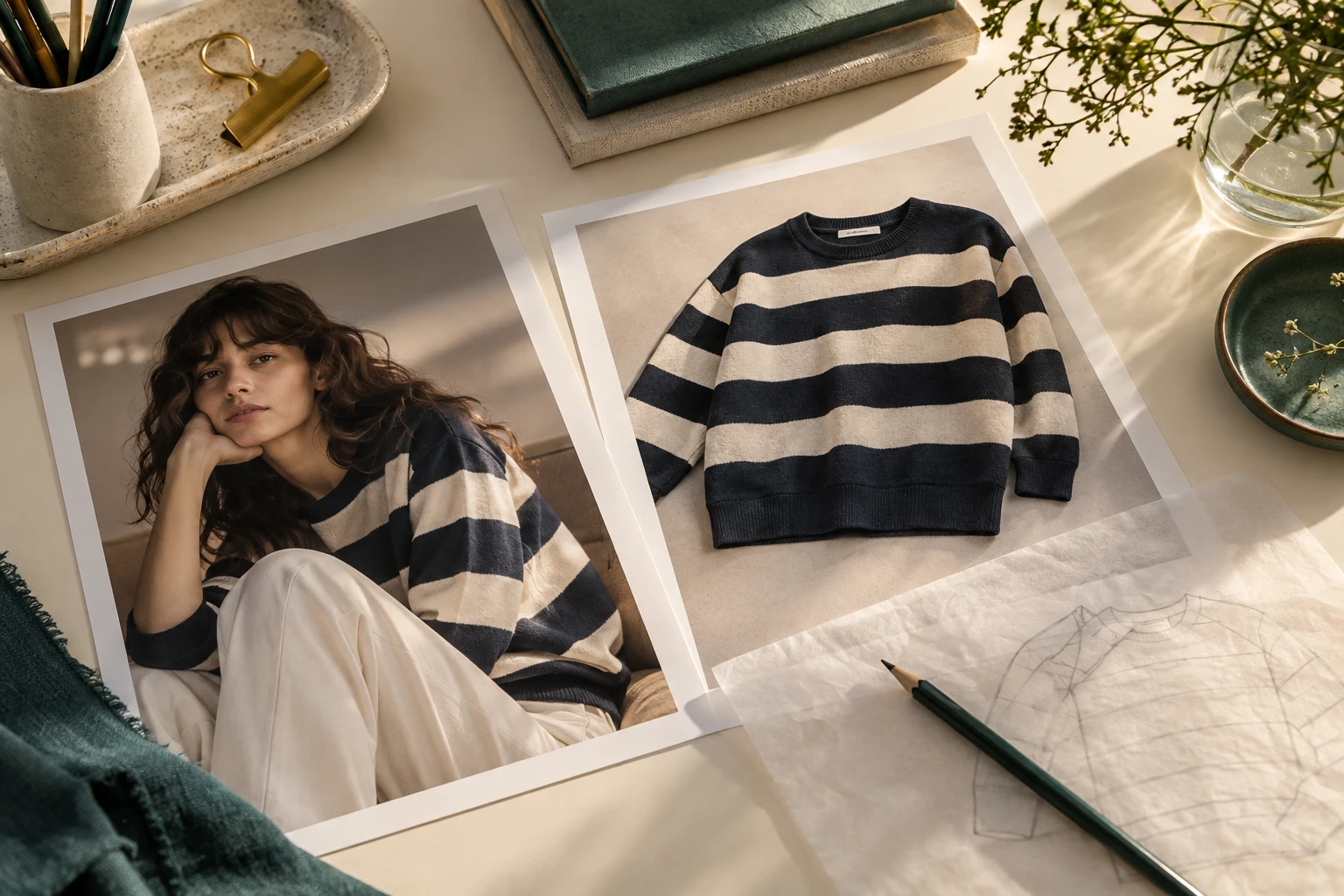
Choosing between Seedream 4.5 and Seedream 5.0 Pro starts with the edit you need to make. A clothing brand transferring its approved model into a new setting has a different problem from a designer who needs to mark one sleeve, replace a background and separate poster elements. A newer version name does not answer either brief by itself. This guide maps the manufacturers’ documented capabilities to practical fashion tasks. It contains no original model benchmark, garment-preservation score or claim that every app exposes the same controls. Use the comparison to prepare a small, relevant evaluation with your own product references.
[1] seed.bytedance.com[2] seed.bytedance.com[3] support.google.com
Define the Decision First
- One deliverable
- Allowed changes · Product constants
- Person reference
- Garment reference · Scene reference
- Indicate the area
- State one change · Review the garment
Describe one deliverable in ordinary production language: a product-page image of the navy striped sweatshirt, a campaign crop of the approved face, or a promotional layout using an existing photograph. Add the required aspect ratio and the details that must survive. A useful brief is specific enough that a second person can reject a wrong result without guessing your taste.
For a striped garment, record the colorway, repeat width, chest artwork and cuff construction. For a portrait-led campaign, record the approved face, hairstyle and visible body proportions. Then distinguish the requested change from those constants. Comparing models on an undefined request usually rewards the more attractive first picture, even when that picture quietly changes the item you sell.
[1] seed.bytedance.com[2] seed.bytedance.com[3] support.google.com
Understand 4.5 Reference Editing
Person reference
Garment reference
Two views of the same editorial photograph, not a model comparison.
ByteDance’s Seedream 4.5 page emphasizes multi-image editing and consistency with reference images, including facial features, lighting and color tone. That is a documented product description, not proof of exact preservation on your stock. It does identify a sensible question for a clothing team: can the available workflow carry the chosen person and product references into the required composition?
Prepare references with distinct jobs. One image identifies the person; another documents the garment; a third can communicate the intended setting. Do not combine several conflicting faces and expect the tool to infer the casting decision. Keep approved close-ups outside the creative input set when their purpose is final inspection rather than composition. Clear reference roles make any result easier to diagnose.
[1] seed.bytedance.com[2] seed.bytedance.com[3] support.google.com
Explore 5.0 Pro Local Controls
Indicate the area
Use the controls actually exposed in your chosen interface.
State one change
Keep the requested local edit distinct from the product facts.
Review the garment
Check the export against the approved source.
The official Seedream 5.0 Pro launch describes interactive editing using spatial annotations, selections, sketches, color or material replacement, layer separation and multi-image fusion. For a fashion team, the relevant distinction is whether the interface lets you indicate the part that needs attention instead of rewriting the entire scene. Verify the controls in the actual app you plan to use; a model announcement is not a feature list for every host.
A practical example is moving a background prop while preserving the approved outfit. Mark the prop, define the change and keep the product reference available. Another is preparing a campaign layout in separate elements. Neither example justifies changing a sellable garment’s material or color without the correct source variant. Creative control and commercial accuracy remain separate decisions.
[1] seed.bytedance.com[2] seed.bytedance.com[3] support.google.com
Use Text Rendering Carefully
- Physical logo
- Campaign headline · Separate acceptance rules
- Same sources
- Same deliverable · Visible review notes
- Repeatable setup
- Ready scene option · Approve the export
Both product families discuss text-related capabilities, but in-image promotional typography and a tiny physical chest logo are different acceptance problems. A sale headline may be recreated as editable design text after image production. A manufacturer’s embroidered wordmark must match the actual garment. Do not accept a plausible replacement because the letters look crisp.
Separate the product photograph from the poster layout. First approve the garment and person. Then add the campaign headline in your layout workflow, where spelling and line breaks remain controllable. If a reference edit touches a logo, compare its characters, spacing, orientation and placement against the approved close-up. A clean-looking error is still an error; typography claims do not remove that review step.
[1] seed.bytedance.com[2] seed.bytedance.com[3] support.google.com
Compare Against Your Brief
Same sources
Keep the input set comparable between the available routes.
Same deliverable
Evaluate the actual placement and framing requirement.
Visible review notes
Retain concrete accept, correct or reject decisions.
Use the same approved sources, target framing and acceptance rules for both versions where their interfaces allow an equivalent setup. Record the exact displayed version, date and app. Keep every candidate associated with its input set and revision history. If one host supplies extra preprocessing or different reference controls, describe the comparison as a workflow comparison rather than an isolated model experiment.
Review garment correctness before aesthetic preference. Mark a changed print, missing button or altered neckline as a product issue even if the overall image is attractive. Record useful outcomes such as approved, requires a defined correction, or rejected for product mismatch. You can then compare the work needed to reach your deliverable without inventing a universal quality score or treating one lucky output as repeatability.
[1] seed.bytedance.com[2] seed.bytedance.com[3] support.google.com
Choose a Repeatable Workflow
Compare the edit and the controls, then judge the real product details in the exported result.
A model comparison is valuable when it changes a production decision. If your team mostly needs a product on a chosen person in a known scene, investigate how often it must rebuild that setup. If it regularly performs marked local edits and layered campaign design, inspect those controls directly. Keep the chosen workflow documented so another operator can repeat the brief next week.
Studiola offers another way to organize that decision: select a model when needed, add your own product and choose a ready Lookbook scene. The scene carries the intended pose, light and framing, reducing setup decisions without guaranteeing garment accuracy. Whether you use that route or a general editor, retain the original references and approve the actual exported image. The useful choice is the one that fits the task and leaves a clear review trail.
[1] seed.bytedance.com[2] seed.bytedance.com[3] support.google.com
Sources, method & questions
Published · By Studiola Editorial Team
Frequently asked questions
Is Seedream 5.0 Pro automatically better for every clothing image?
No conclusion like that follows from documented controls alone. Match the task, app features and review requirements, then evaluate your garments.
Does this guide report a Seedream fashion benchmark?
No. It compares official descriptions and proposes a production decision process. No generation test, score or measured success rate is presented.
How this guide was researched
An editorial guide based on official sources. No generation benchmark or model ranking was performed. Proposed review steps are a working method, not a measured performance claim.
Sources & further reading
- 01Seedream 4.5 — official model page
seed.bytedance.com · Primary source · Checked
- 02Introducing Seedream 5.0 Pro — ByteDance Seed, July 8, 2026
seed.bytedance.com · Primary source · Checked
- 03Google Merchant Center image requirements
support.google.com · Primary source · Checked
Prepare a scene with your product
In Studiola, select a model when needed, add your own product and choose a ready Lookbook scene. Review the output against the product reference.