GPT Image Fashion Editing Briefs
Prepare a GPT Image fashion edit with clear reference roles, garment invariants, local changes and an export review that catches logo and construction drift.
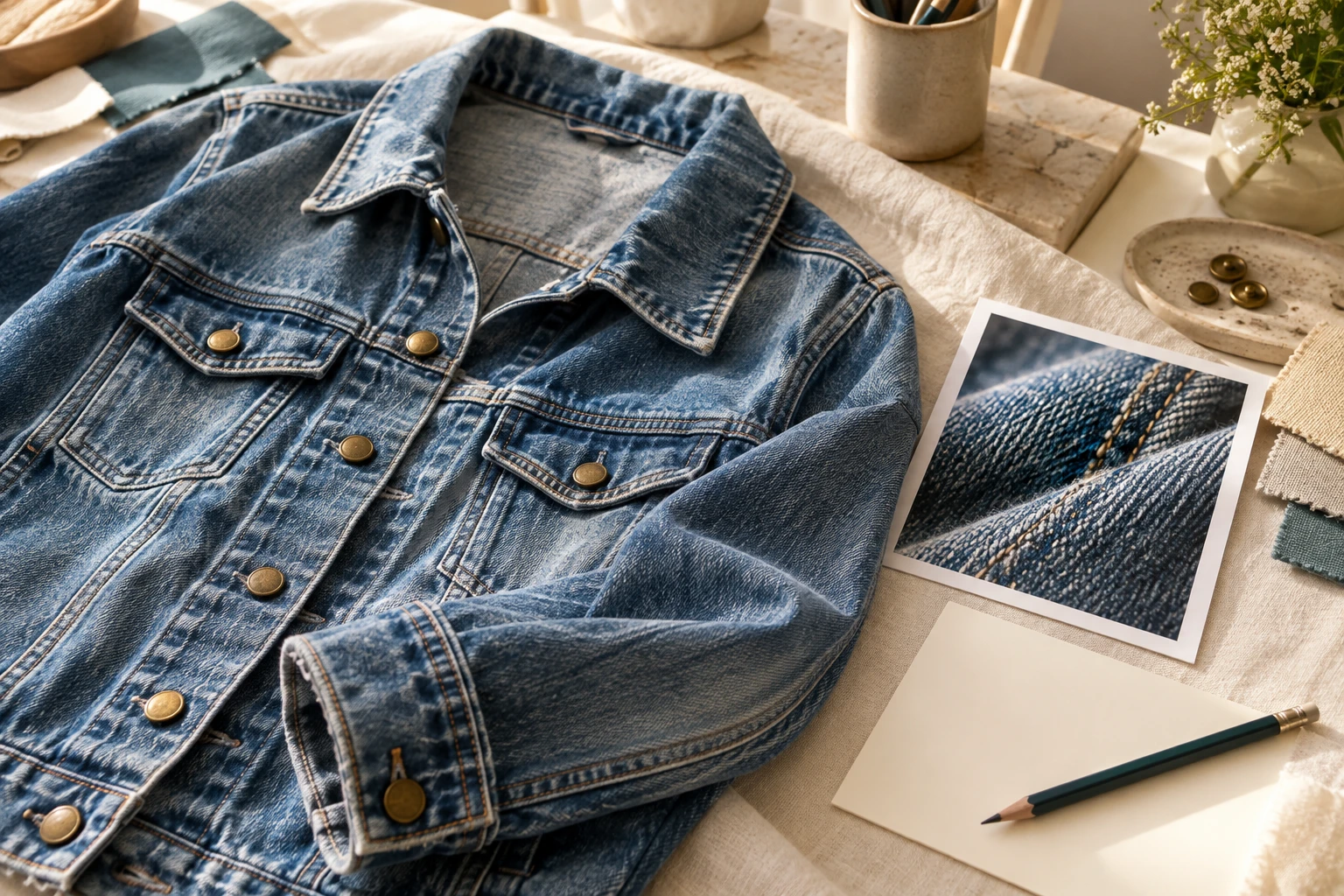
A useful fashion edit begins before you write the final instruction. You need to decide what each reference proves, which product details are fixed and which part of the image may change. Otherwise, a request such as “make this campaign look premium” leaves the person, garment, lighting and composition open to reinterpretation. This guide shows how to brief GPT Image for a specific clothing edit while keeping commercial review separate from creative direction. GPT Image is used as a family name here; record the exact version and interface you use. Official API capabilities do not mean that every application exposes identical controls.
Assign Each Reference a Role
- Product establishes facts
- Person establishes identity · Scene establishes direction
- Construction
- Artwork · Correct variant
- Name the action
- Identify the region · Protect the surrounding brief
Build a small reference packet instead of a crowded inspiration folder. The approved garment image establishes the item for sale. The model reference establishes the person. A scene reference can establish camera distance, lighting direction or surroundings. Label those roles in the brief so the creative tool is not asked to decide which product, face or background should win.
Include only references that resolve a question. A full front view may establish construction, while a close-up establishes a tiny woven mark. If the back matters, provide a back reference rather than asking the editor to imagine unseen details. Keep the original files separate from mood references, and name them by SKU, view and variant. That simple separation gives the reviewer a reliable place to return when a candidate looks persuasive but uncertain.
Define Observable Product Constants
Construction
Artwork
Two views of the same editorial photograph, not a model comparison.
An invariant is something a reviewer can point to, not an adjective such as authentic or luxurious. On a denim jacket it could be the number and position of flap pockets, the stitching path, the button finish and the approved wash. On knitwear it could be the ribbed neckline, sleeve length and cable repeat. Preserve these details explicitly when they are visible and commercially important.
Keep the list short enough to use during review. Put secondary styling preferences elsewhere so they do not obscure a mandatory product constraint. “Preserve the two chest pockets and brass buttons; change only the setting” is more actionable than a paragraph of brand mood. This is a briefing technique, not a guarantee of obedience. If a required detail changes, the candidate needs a correction or rejection even when every other part of the brief succeeds.
Describe the Edit Boundary
Name the action
Say what changes in plain production language.
Identify the region
Use the available region control rather than an ambiguous location.
Protect the surrounding brief
Compare both the changed area and the remaining garment.
OpenAI’s official image guide documents reference-based generation, editing and region-guided changes. In your working interface, identify whether you are changing the whole scene or a selected area. Those are different requests. A background replacement should not quietly become a redesign of the jacket, and a sleeve correction should not reset the approved face.
State the requested action, the target and the surrounding elements to preserve. For example: replace the empty studio wall with a pale plaster wall; keep the person, jacket, camera angle and crop. If a selection or mask is available, use it to communicate the intended region, then inspect the result beyond its boundary as well. Split unrelated changes into separate decisions so you can tell which instruction introduced a product problem.
Separate Branding from Campaign Text
- Approve the garment
- Finish campaign typography · Recheck physical branding
- Composition view
- Detail view · Concrete review note
- Original input
- Approved state · Next specific change
OpenAI’s documentation acknowledges remaining limitations in text placement, clarity, recurring characters and brand elements. Treat that as a reason to inspect, not a reason to abandon the workflow. A jacket’s embroidered lettering is part of the product; a sale headline is a design element added to a campaign. They need different correction paths.
Approve the product image before placing promotional type. When exact headline spelling and layout matter, finish those elements in an editable layout tool. When physical branding appears in the generated photograph, compare the letters and their relationship to seams or pockets with the source close-up. Do not repair an altered logo by inventing a similar symbol. Use the approved artwork in a controlled retouch where appropriate, and review how it sits on the fabric afterward.
Review at Two Scales
Composition view
Confirm that the image works for its intended placement.
Detail view
Compare the physical product identifiers with the source.
Concrete review note
Describe the exact mismatch before requesting a revision.
Start with the full composition: is the intended product visible, is the crop usable and does the pose communicate the planned look? Then inspect product-defining areas at full size. A small thumbnail can hide changed stitches or missing characters, while a close-up alone can miss a badly cropped sleeve. Both views answer necessary, different questions.
Use a side-by-side review with the approved source and the exported candidate. Check the neckline, closure, hem, artwork and colorway in an order suited to the garment. Record the reason for a rejection in concrete language, such as “left pocket flap removed,” rather than “not quite right.” That note becomes the next edit request and prevents a reviewer from repeatedly trying a broad aesthetic instruction to solve a specific construction problem.
Keep the Approved Reference
Make the request precise enough to edit and the product facts clear enough to review.
Save the original inputs, the accepted candidate and the next requested change together. A later edit should not turn yesterday’s unnoticed error into today’s new product reference. If the neckline or face has drifted, branch again from the clean source or last genuinely approved state. Preserve the change history so another editor can understand why a file was accepted.
If the recurring job is a model wearing your product in a known Lookbook setting, Studiola lets you choose the model when needed, add the product and select a ready scene. That removes the need to rebuild the scene brief every time; it does not certify the final garment. Use GPT Image when the edit requires its available controls, or a scene-led flow when the setup fits. In either case, the approval decision belongs to the actual image you will publish.
Sources, method & questions
Published · By Studiola Editorial Team
Frequently asked questions
Should I specify API parameters in an ordinary image-editing app?
Only if that app actually exposes them. This guide uses briefing concepts; API options and app controls are not interchangeable.
Does a strong reference brief guarantee an exact logo?
No. References communicate the task, while a separate comparison establishes whether the final physical branding is acceptable.
How this guide was researched
An editorial guide based on official sources. No generation benchmark or model ranking was performed. Proposed review steps are a working method, not a measured performance claim.
Sources & further reading
- 01OpenAI image generation guide — edits, references and limitations
OpenAI · Primary source · Checked
- 02Google Merchant Center — image requirements
Google · Primary source · Checked
Prepare a scene with your product
In Studiola, select a model when needed, add your own product and choose a ready Lookbook scene. Review the output against the product reference.