AI Eyewear Photos: Keep the Frame
A stylish face is only part of the picture. Keep the frame geometry, small connections and actual lens appearance recognizable.
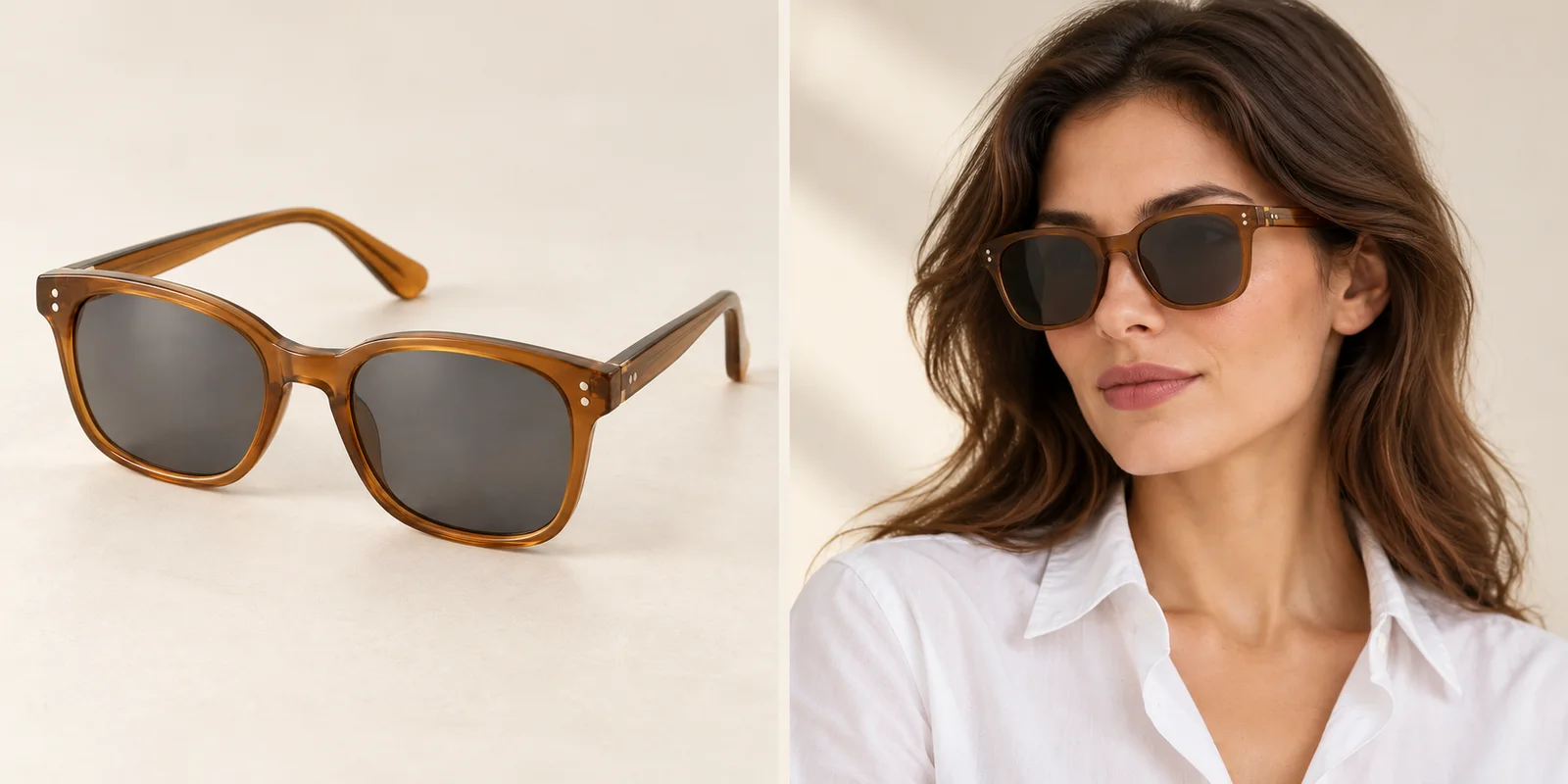
A convincing portrait can still contain a different pair of glasses.
For AI eyewear product photography, start with the frame geometry and the exact lens variant. A rounded rectangle should not become a cat-eye frame simply because the new face looks good. Rim thickness, bridge shape and the way the temples meet the front are visible product decisions. Keep them attached to the actual reference instead of accepting any attractive pair in the same color family.
This visual guide follows one fictional amber frame from a clean product view into a portrait. Move from the complete silhouette to the bridge and hinges, then inspect what happens to the lenses. The photographs are AI-created editorial illustrations, including deliberately altered examples. They explain what to look for; they are not measured Studiola results or a comparison of generation models.
Show More Than the Front
Give the outline, the side and the small connection their own photograph.
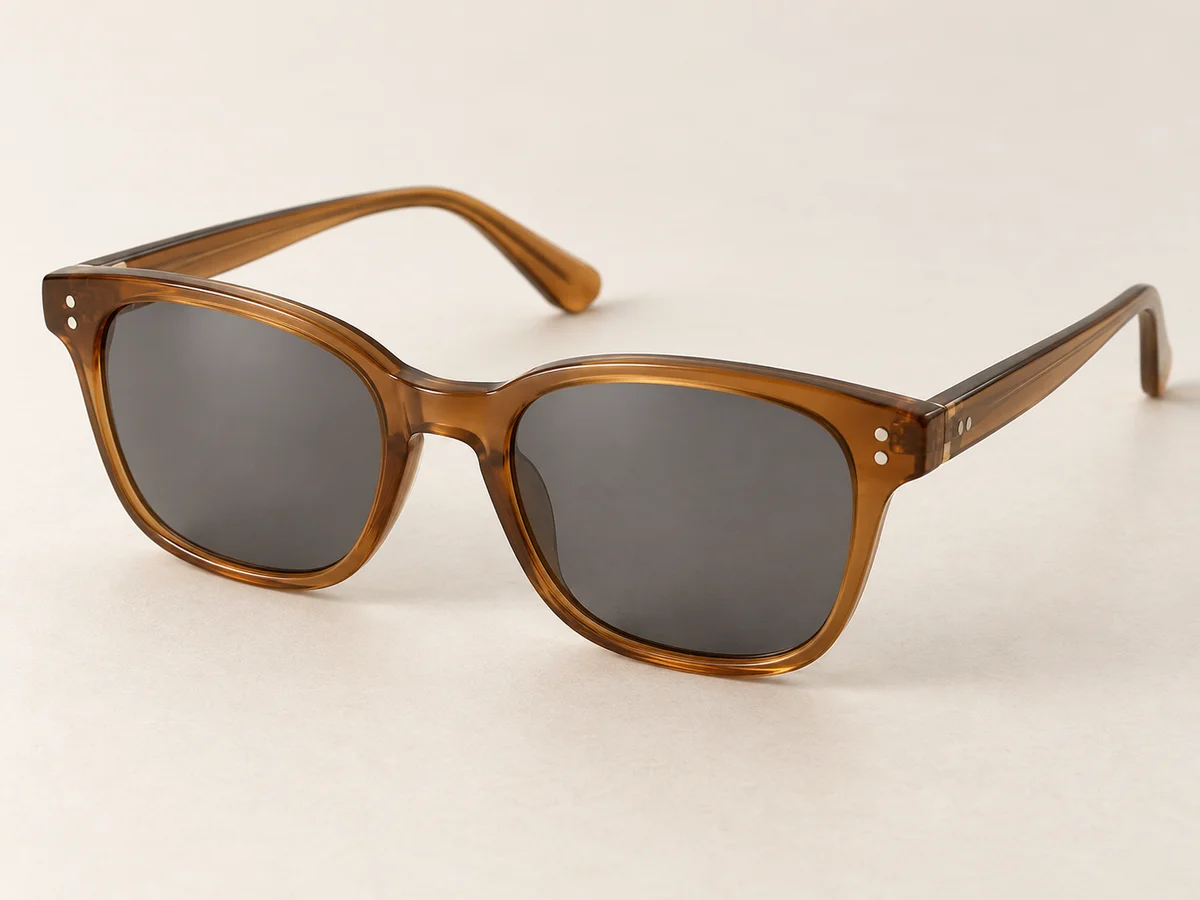
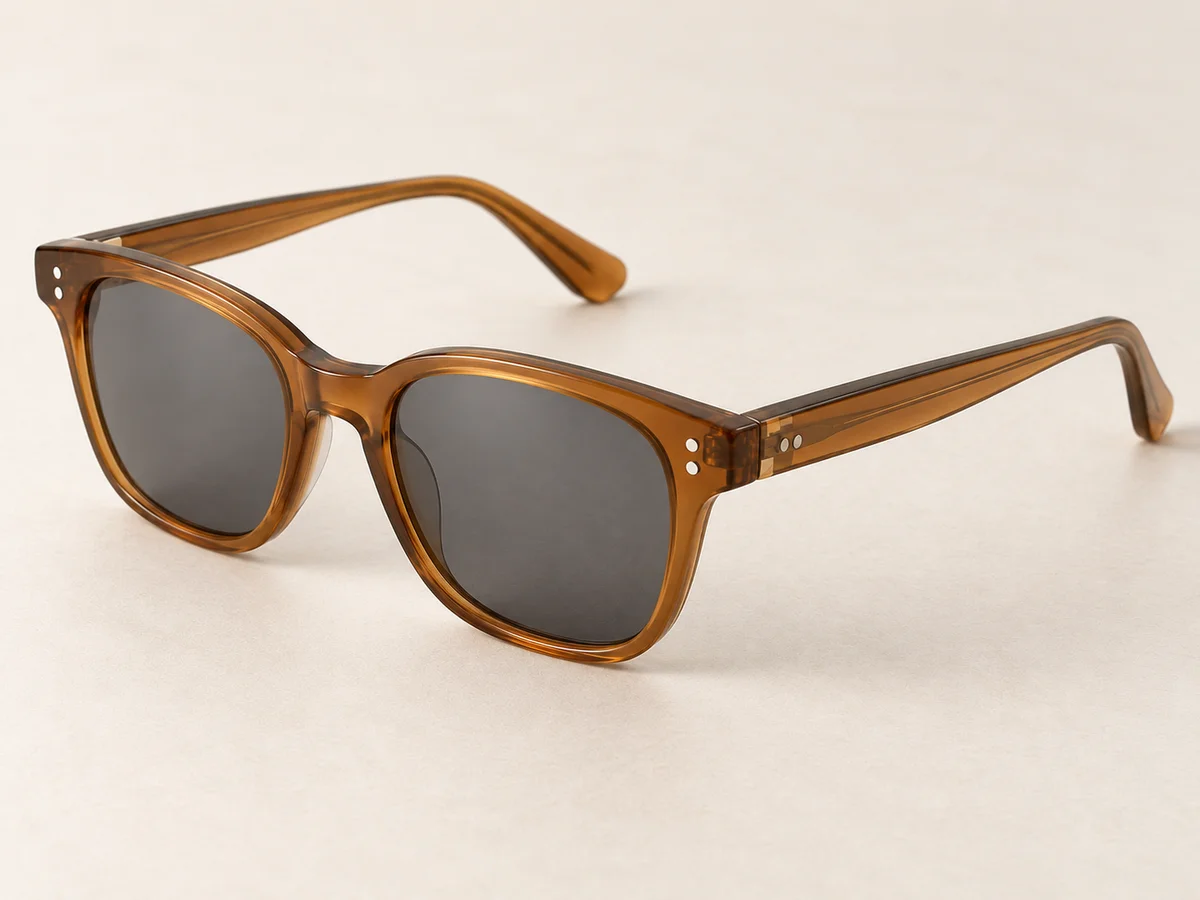
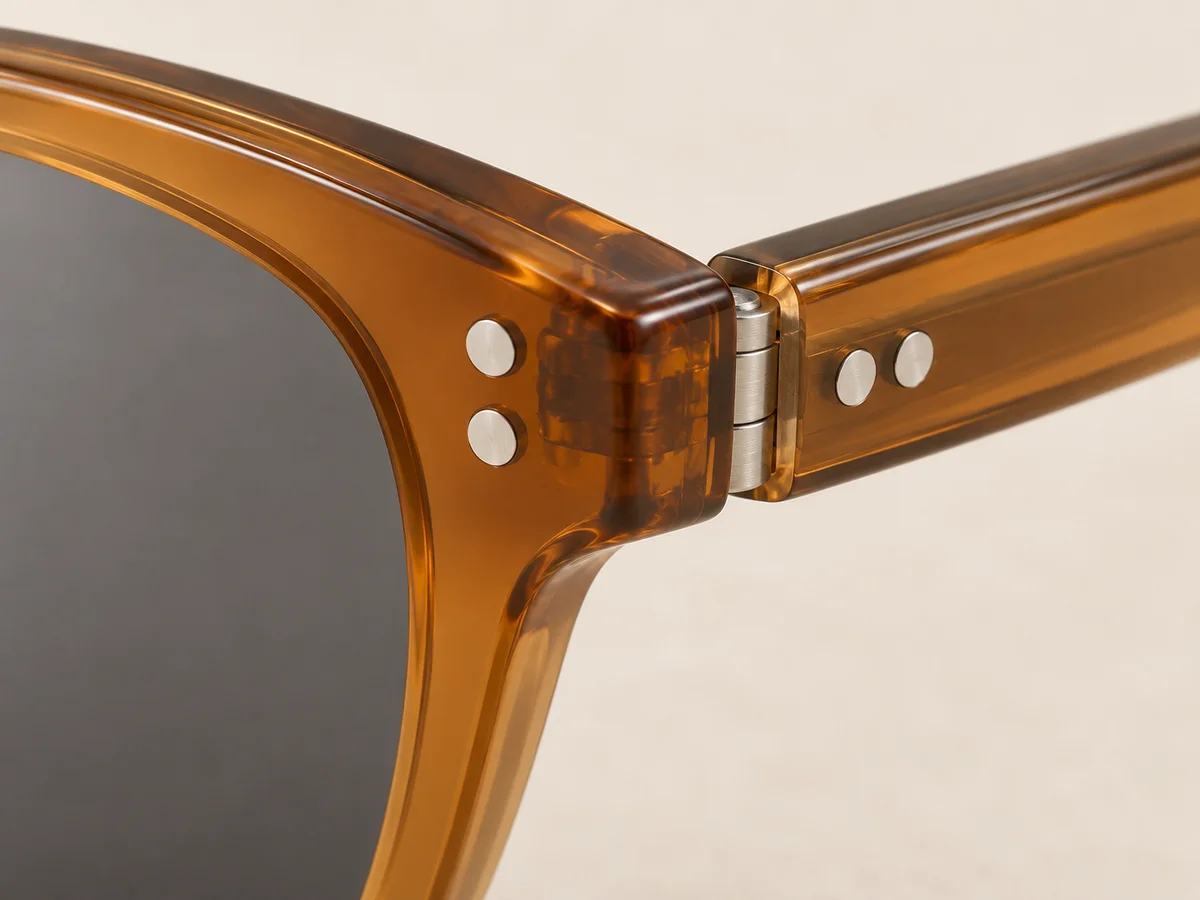
Prepare a clear front or three-quarter view of the correct frame and lens combination. Add a side view with the temple open and a close-up where the hinge joins the front. A front-only image can establish the silhouette but leave the temple thickness or connection unclear. Keep one product name, color and lens option with the complete set so similar variants do not become a conflicting reference.
Adobe’s product-photography guide recommends multiple angles and detail views, with the product remaining the focus of lifestyle pictures. Apply that principle here: remove cases, cleaning cloths and distracting props from the main reference. Show the frame itself sharply. Retain an unobstructed product view even when the final creative direction is a portrait, because a face can hide the parts that make the frame distinctive.
Read the Rim and Bridge
Compare the outline before judging the expression or background.
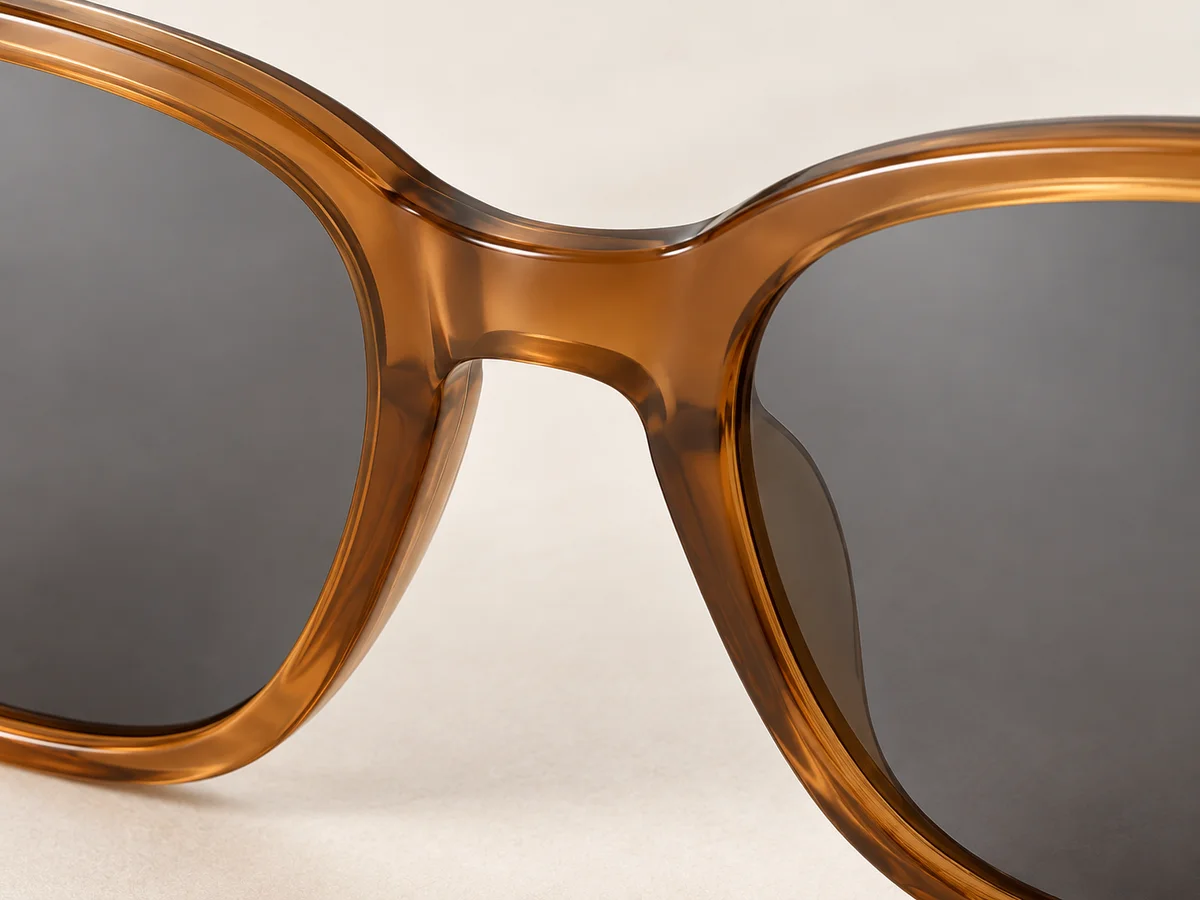
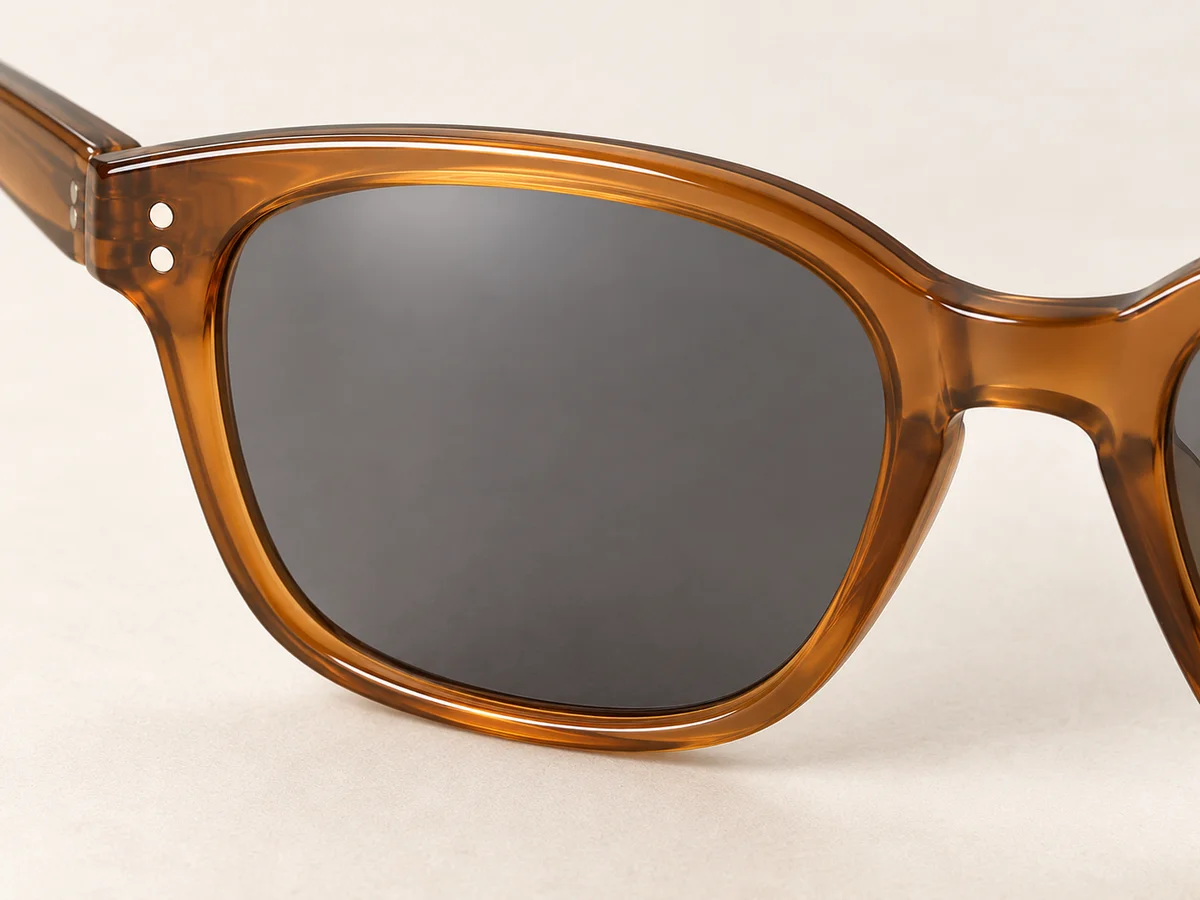
Follow the top edge, outer corners and lower curve of each lens opening. Compare the width and height relationship at a similar angle, allowing for normal perspective when one side is farther from the camera. Check whether a thick acetate rim has become thin metal, whether the outer corner has lifted, or whether the lower curve now describes a different design. Those changes matter even when the overall color remains familiar.
Warby Parker’s anatomy guide distinguishes rims, bridge and end pieces. Use these landmarks to make the comparison specific. Inspect the bridge opening and its connection to the two rims; do not accept an invented second bar or separate nose pads when the source has an integrated acetate bridge. The point is a recognizable construction, not mathematically identical pixels across different viewpoints. Record the particular component that changed.
Follow the Temple Connection
Small hinges and pins can identify the whole frame.
At the outside corner, trace the front into the hinge and along the temple. The arm should connect physically and follow a plausible route toward the ear. Compare the hinge location, visible pins, temple width and any actual decorative detail. Warby Parker describes hinges as the joints connecting the frame front to the temples; that gives you a useful place to begin a close inspection.
A different camera angle may conceal a screw or the inside of a temple. Concealment alone is not a missing part, so use a clearer product view when the component matters. Do not request an elaborate hinge from a blurred source or treat a plausible invented emblem as the original branding. Keep the supplier’s approved detail photograph close, and distinguish a reflection on polished hardware from a changed connection.
Separate Tint from Reflection
A bright reflection should not silently become a different lens option.
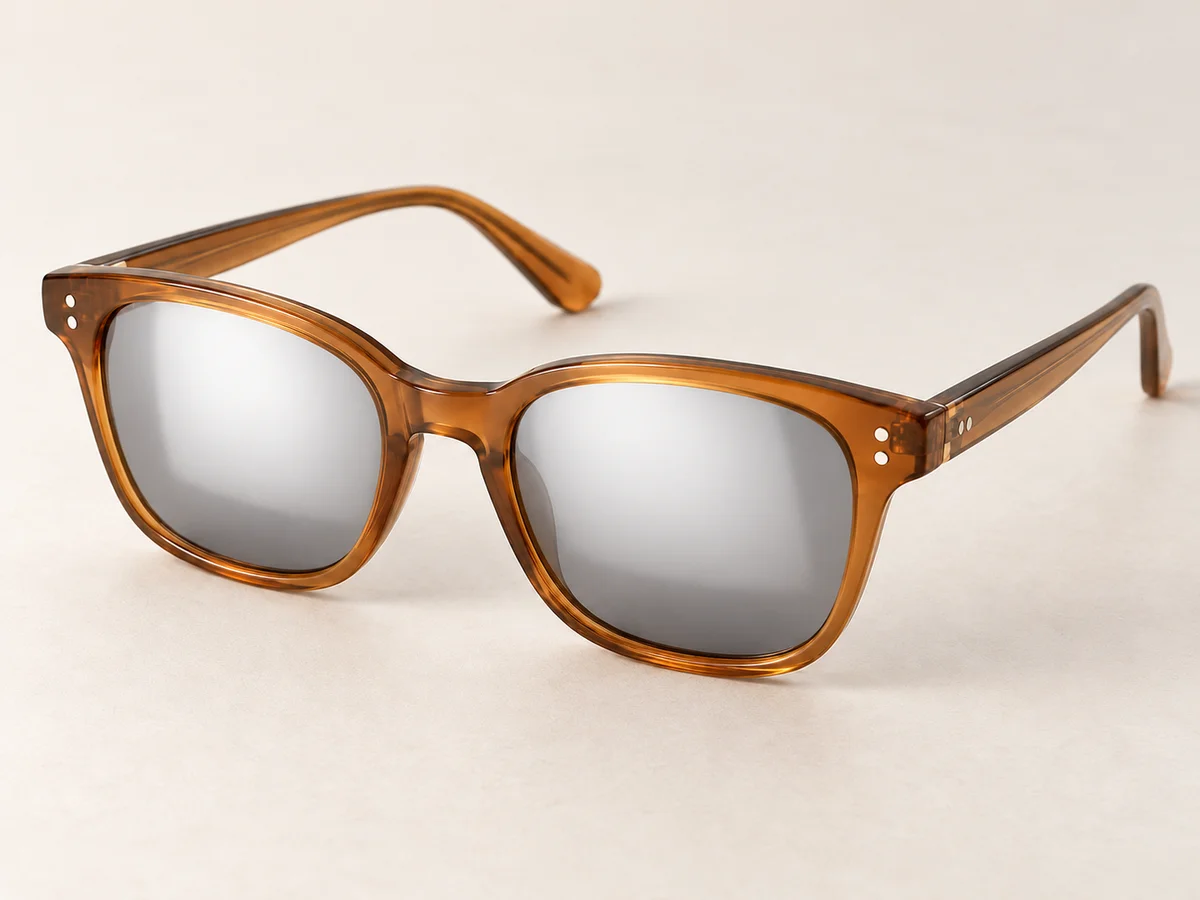
Look through and across the lens separately. Compare its visible tint with the reference, then identify the bright shapes reflected on its surface. A smoky gray lens should not become mirrored gold or nearly black merely to suit a dramatic scene. The comparison below deliberately adds a dominant reflection to show how surface glare can hide the intended appearance without making the frame outline disappear.
ZEISS documents that lens coatings affect reflections and appearance. That does not make a generated reflection proof of a coating, prescription or protective performance. Use the real product specification for those facts. For the image, choose lighting that lets the customer inspect the selected lens option and the rim together. Google Merchant Center likewise asks variant imagery to match the exact option being sold, including its finish and material.
Keep the Face as Context
The wearer should help explain the frame, while leaving its details visible.
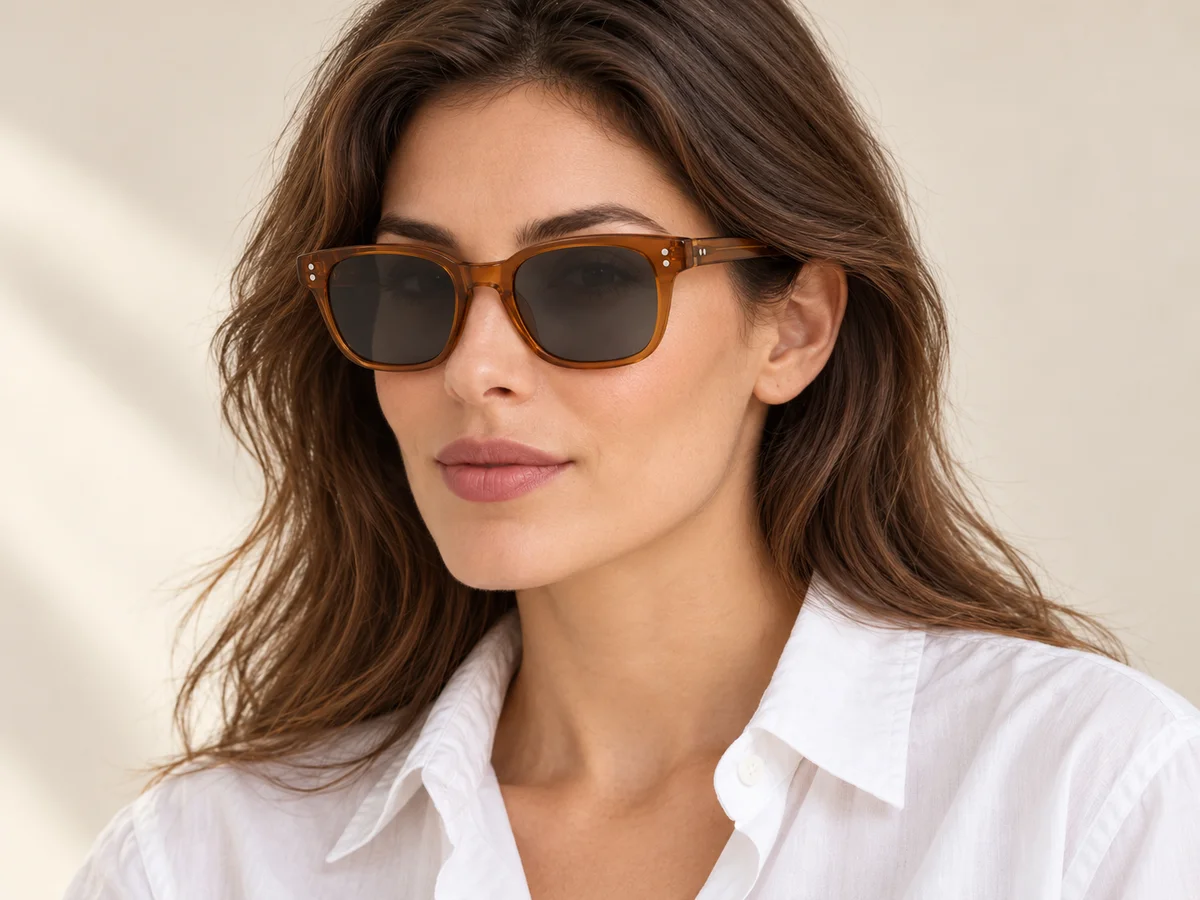
Choose a portrait angle that reveals the front and at least one temple connection. Hair across the outer corner, a hand holding the bridge or a head turned too far away can hide the feature you need. Start with a calm, readable view before adding a more expressive campaign frame. Compare the two lens openings and the bridge against the product photograph rather than judging only whether the portrait feels natural.
A generated wearer provides styling context; the image is not a measurement of comfort, bridge fit or temple length. Keep the frame dimensions and the appropriate product information in the listing. When a face obscures the side construction, pair the portrait with the open-temple product view. A useful image set can include both personality and a straightforward view of what the customer is choosing.
Choose the Eyewear Scene
Use visible direction to shorten preparation, then review the actual product details.

Model · choose Your product · add 
Ready scene · choose Result · review the details
In Studiola, choose a model when needed, add your own eyewear reference and select a ready Lookbook scene. The scene gives the pose, lighting and framing a visible starting point. The basic flow does not require writing a prompt. That reduces the work of assembling the same references and describing a portrait setup from scratch, while leaving the product decision with your team.
Choose the scene for the frame detail you want to show: a front outline, an open side connection or a close portrait. Generate, then compare the exported frame and lens appearance with the approved references. A prepared scene makes the direction easier to choose; it does not guarantee that every pin or curve survives unchanged. Keep the correct color and lens variant alongside the final file and retain the clean product view.
Sources & quick answers
Published · By Studiola Editorial Team
Frequently asked questions
Is one front photo enough for AI glasses images?
It may support a front-facing presentation. Add a side and hinge view when the scene reveals the temple, connection or details missing from the front reference.
Should reflections look identical in every photo?
No. Reflection shapes change with the scene and viewing angle. Keep the actual lens option recognizable, and use product specifications rather than a generated reflection to describe optical features.
Can an AI portrait prove that a frame fits?
A portrait can show styling context, but it does not establish comfort or measured fit. Keep frame dimensions and the seller’s fit information available alongside readable product views.
How this guide was researched
Source-based editorial guidance researched on October 25, 2026. Generated photos and altered-reflection comparisons are illustrative, not verified product reproductions, optical tests, fit predictions or measured Studiola results. Proposed review practices are not a model benchmark. Studiola publishes this guide and provides the Lookbook workflow described.
Sources & further reading
- 01Parts of Glasses: A Glasses Anatomy Guide
Warby Parker · Primary source · Checked
- 02ZEISS DuraVision Plus lens coatings
ZEISS · Primary source · Checked
- 03Product photography: Tips and techniques
Adobe · Primary source · Checked
- 04Image link [image_link]
Google Merchant Center · Primary source · Checked
Build a Scene Around Your Product
Add your product, choose a ready scene and keep its defining details in view.